Setting up your company information, sender details, Auto Send preference, and Knowledge Base
What Is This Guide For?
You’ve connected SendGrid and set up IMAP. Now, before you import any leads or run any campaigns, there’s one more setup step: General Settings.
This is where you tell LeadVix who you are, how you want emails to appear when they’re sent, how the AI should behave, and most importantly, where you upload your Knowledge Base, the document that trains the AI to sound like your company.
This step takes about 5 to 10 minutes, and you only do it once.
How to Get There
In LeadVix, go to Settings → General Settings.
You’ll see a form with several fields to fill in. Work through them top to bottom; none of them is complicated.
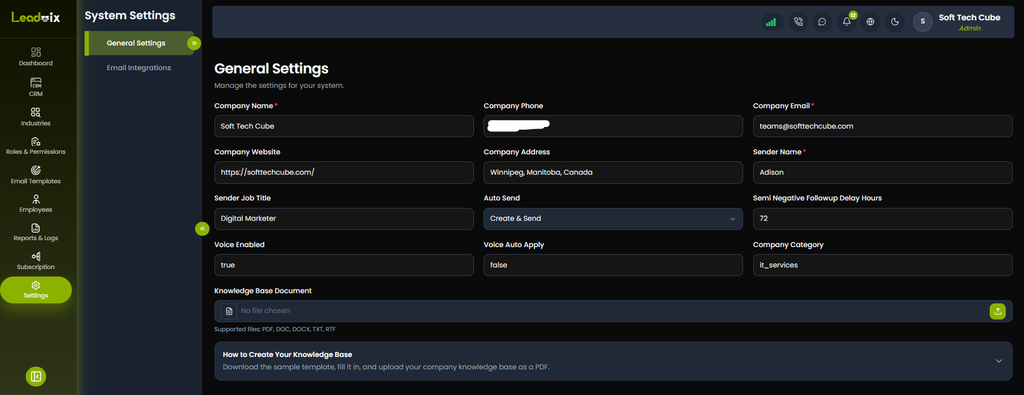
Step 1: Enter Your Company Email
In the Company Email field, enter the email address associated with your company.
This is the email LeadVix will use to identify your organisation within the platform. It should match the email you use for business communication.
💡Tip: Use the same email you set up as your From Email in SendGrid. Keeping these consistent avoids confusion and makes your outreach look more professional.
Step 2: Add Your Company Website
Enter your company’s website URL in the Company Website field.
This is optional but recommended. The AI uses your company information when drafting emails; having your website on file gives it more context to work with.
💡Tip: Include the full URL, including https://, for example https://yourcompany.com
Step 3: Set Your Sender Name
The Sender Name is the name that appears in the recipient’s inbox when they receive an email from you, right next to your email address.
For example, if your Sender Name is “Ali — Exol AI”, that’s what leads will see before they even open the email.
Choose something that feels personal and professional at the same time. Options include:
- Your first name only — “Ali”
- Your name and company — “Ali from Exol AI”
- Your company team name — “Exol AI Team”
💡Tip: Emails with a person’s name in the sender field tend to get opened more than emails that just show a company name. People respond better to people.
Step 4: Add Your Job Title
Enter your job title in the Job Title field. This can be anything that accurately represents your role: Manager, Director, Business Development Lead, or whatever fits.
This information may appear in email signatures or be used by the AI when introducing you to leads.
Step 5: Choose Your Auto Send Setting
This is one of the most important settings in LeadVix. Take a moment to understand what it means before choosing.
Auto Send controls what happens when the AI drafts a reply to an incoming lead response.
You have two options:
Option 1: AI Generates and Sends Immediately
The AI reads the incoming reply, drafts a response, and sends it automatically without waiting for your approval.
Option 2: AI Generates and Waits for Admin Approval
The AI reads the incoming reply and drafts a response, but it holds it in a queue and waits for you to review and approve before anything is sent.
| Auto Send ON | Auto Send OFF | |
| Speed | Faster — replies go out instantly | Slower — requires manual review |
| Control | Less — AI decides what goes out | Full — you approve every reply |
| Best for | High volume campaigns with a well-trained Knowledge Base | New users or campaigns where every word matters |
| Risk | AI may occasionally send a reply that needs tweaking | Replies may be delayed if you’re not checking regularly |
⚠️ Recommendation for New Users: Keep Auto Send off when you’re just starting out. Review the first few AI-generated replies manually so you can see how the AI is responding and make sure your Knowledge Base is training it correctly. Once you’re confident in the quality of the replies, you can switch Auto Send on.
⚠️ Important Disclaimer: Whether Auto Send is on or off, LeadVix does not guarantee any specific outcome from AI-generated replies. Results depend on your lead quality, your Knowledge Base, your industry, and many other factors outside the platform’s control.
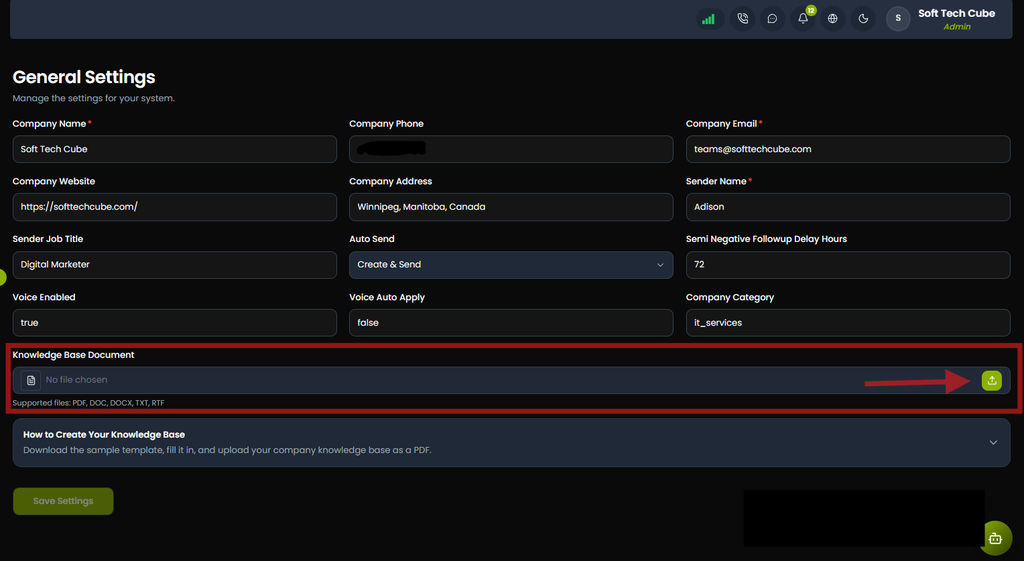
Step 6: Upload Your Knowledge Base
This is the most impactful thing you can do to improve the quality of your AI replies.
What is the Knowledge Base?
The Knowledge Base is a document that tells the AI everything about your company. When a lead replies to your email, the AI reads the reply, checks your Knowledge Base, and uses that information to draft a relevant, accurate, and on-brand response.
Without a Knowledge Base, the AI is guessing. With a good Knowledge Base, it sounds like a knowledgeable member of your team.
What should your Knowledge Base include?
- Company name, website, and a brief description of what you do
- Your products or services — what they are, what problems they solve, and who they’re for
- Pricing information (if you’re comfortable sharing it in outreach)
- Common questions leads ask and how you typically answer them
- Your tone of voice — formal, friendly, direct, consultative?
- What you want leads to do next — book a call, reply with interest, visit a page?
- Any objections you commonly hear and how you handle them
How to get started:
LeadVix provides a Sample Knowledge Base Template you can download directly by clicking How to Create Your Knowledge Base, located right under the box for the Knowledge Base document on the General Settings page.
Download it, open it, and fill it in with your company’s information. The template shows you exactly what to include and in what format.
Once your document is ready:
- Click Upload next to the Knowledge Base field
- Select your completed Knowledge Base file
- The system will confirm the document has been selected and uploaded successfully
💡Tip: Keep your Knowledge Base simple but specific. Clearly cover your core services, target customers, and communication style, avoiding vague descriptions. You can refine it as you learn how the AI responds.
Step 7: Save Your Settings
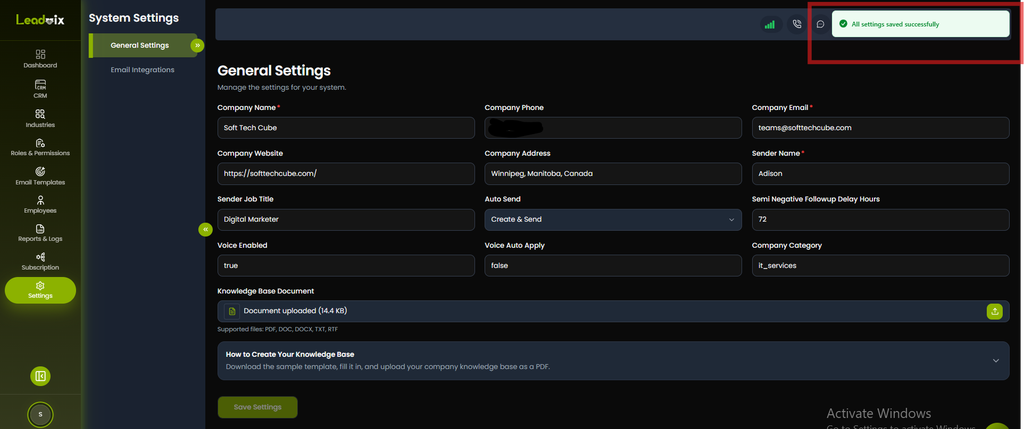
Once all fields are filled in, click Save Settings.
The system will confirm your settings have been saved successfully.
At this point, your entire initial setup is complete:
- ✅ SendGrid connected and tested
- ✅ IMAP configured and saved
- ✅ General Settings complete with Knowledge Base uploaded
LeadVix is now fully configured and ready to use. Your next step is importing your leads.
What Happens After General Settings Are Saved?
From this point forward, every email that goes out through LeadVix will use:
- Your Sender Name as the display name in the recipient’s inbox
- Your From Email (set in SendGrid) as the sending address
- Your Knowledge Base to inform every AI-generated reply
- Your Auto Send preference to decide whether replies need approval or go out automatically
You can come back and update any of these settings at any time. If your company rebrands, your services change, or your tone evolves, just update your Knowledge Base and save again.
Something Not Working? Start Here
1. Settings not saving
Make sure all required fields are filled in before clicking Save. If the page refreshes without saving, check your internet connection and try again.
2. Knowledge Base not uploading
Check the file format LeadVix accepts standard document formats. If your file is very large, try reducing its size by removing any unnecessary images or formatting. If the issue persists, contact support@leadvix.com.
3. AI replies don’t sound like my company
This almost always means your Knowledge Base needs more detail. Go back to General Settings, update your Knowledge Base document with more specific information about your tone, services, and typical responses, and re-upload it.
4. Sender Name not appearing correctly in emails
Double-check what you entered in the Sender Name field and make sure it is saved correctly. Also confirm your From Name in your SendGrid configuration matches; both should be consistent.
Frequently Asked Questions (FAQs)
Is the Knowledge Base required before I can run campaigns?
Technically, you can run campaigns without it, but the AI replies will be generic and may not represent your company accurately. Uploading a Knowledge Base before your first campaign makes a significant difference to reply quality.
How often should I update my Knowledge Base?
Whenever something meaningful changes new services, updated pricing, a shift in tone or target audience, or new common objections you’re hearing from leads. There’s no fixed schedule, but a quarterly review is a good habit.
Can I have different Knowledge Bases for different campaigns?
Check with the LeadVix support team for the most up-to-date answer on this, as platform capabilities may evolve over time.
What happens if I turn Auto Send on and the AI sends something I wouldn’t have approved?
You’re responsible for all emails sent under your account, including those sent automatically by the AI. This is why we recommend keeping Auto Send off until you’re confident in your Knowledge Base and comfortable with the quality of AI replies.
Can I change my Sender Name later?
Yes. You can update any field in General Settings at any time. Changes take effect on the next email sent.
Does the Job Title field affect anything in the platform?
It may appear in email signatures or be used by the AI when introducing you to leads. Keep it accurate and professional.
What file format should my Knowledge Base be in?
LeadVix accepts standard document formats. Use the sample template provided in General Settings as your starting point; it’s already in the right format.