Getting your contact data into the platform and ready for campaigns
What Is This Guide For?
Now that your account is fully set up, it’s time to bring in your leads the contacts you want to reach out to through campaigns.
LeadVix lets you import leads in bulk from an Excel file. This guide walks you through downloading the correct template, preparing your data, uploading it, and understanding the import report the system generates.
Before You Start
A few things worth knowing before you begin:
- Leads are imported using an Excel file (.xlsx)
- LeadVix provides a Sample Excel file you can download; use this as your template
- The system automatically detects duplicate records based on email address
- Missing required fields will cause individual records to fail, not the whole import
- You can clean your data and re-import at any time
Step 1: Go to the Import Section
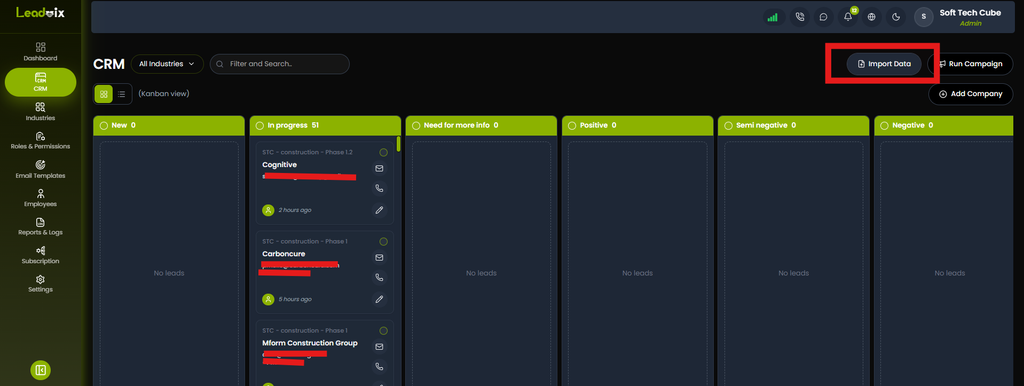
In LeadVix, go to CRM in the left sidebar. Look for the Import Data button and click it. This opens the lead import panel where you’ll download the template and upload your file.
Step 2: Download the Sample Excel File
Before preparing your data, download the Sample Excel file that LeadVix provides.
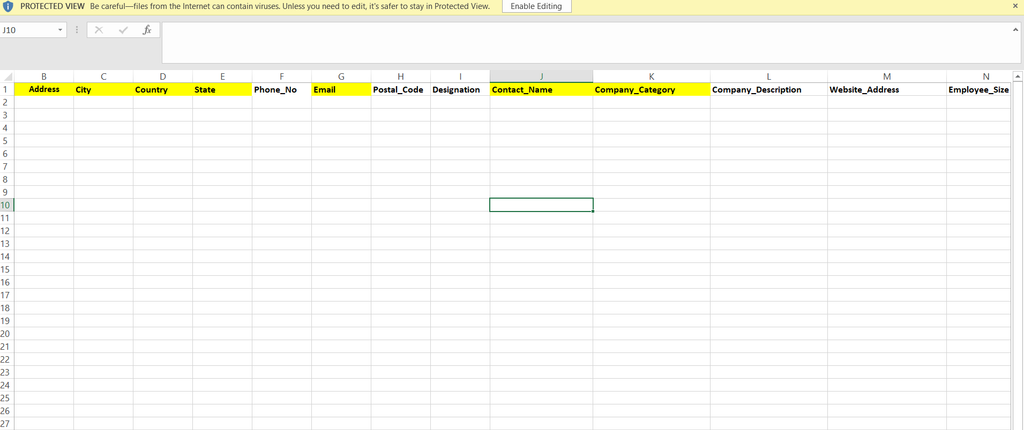
Click Download Sample. This gives you an Excel file with all the columns LeadVix expects, already set up in the correct format.
Open the file and take a look at the columns:
- Highlighted columns: These are Required Fields. Every record must have these filled in, or it will fail to import
- Non-highlighted columns: These are Optional Fields. Include them if you have the data, but they won’t cause a record to fail if they’re missing
💡Tip: Always use the Sample file as your starting point; don’t create your own column headers from scratch. If column names don’t match exactly what LeadVix expects, the import won’t work correctly.
Step 3: Prepare Your Lead Data
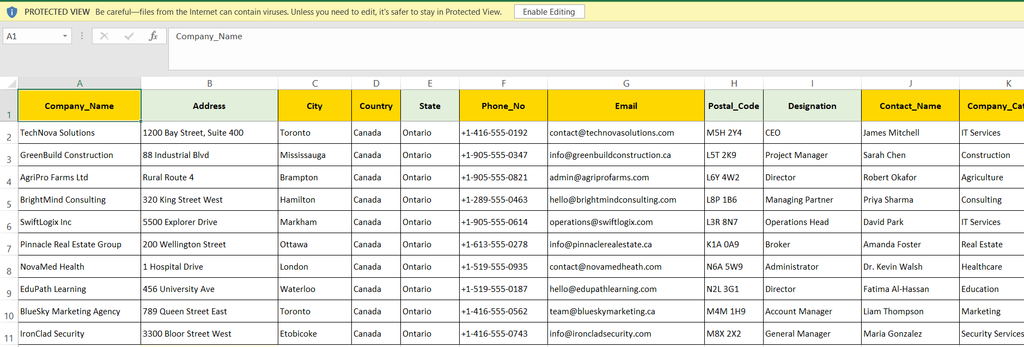
Now fill in the Sample file with your actual lead data. A few important rules to follow while preparing your data:
Keep required fields complete
Every row must have all required fields filled in. A single missing required field will cause that record to fail even if everything else is correct.
Use real, unique email addresses
Email address is how LeadVix identifies leads. If the same email address appears more than once in your file or already exists in your LeadVix account, the system will flag it as a duplicate and skip it.
Keep your data clean
Remove any obviously wrong data: blank rows, test entries, or placeholder email addresses like test@test.com. The cleaner your data going in, the better your import results will be.
Don’t mix industries in a confusing way
LeadVix organises leads by industry and campaigns are run by industry. Make sure the industry or company category column is filled in accurately for each lead. This matters later when you go to run campaigns.
💡Important: The Sample file LeadVix provides is in Excel format for easy editing. Before uploading, you must save your file as CSV (.csv) — LeadVix only accepts CSV files for import. In Excel or Google Sheets, go to File → Save As → CSV (.csv) before uploading.
💡Tip: If you’re working from an existing CRM or spreadsheet, map your existing column names to the ones in the LeadVix template. You may need to rename a few columns or copy data across; this is normal and worth doing carefully.
Step 4: Upload Your File
Once your Excel file is ready:
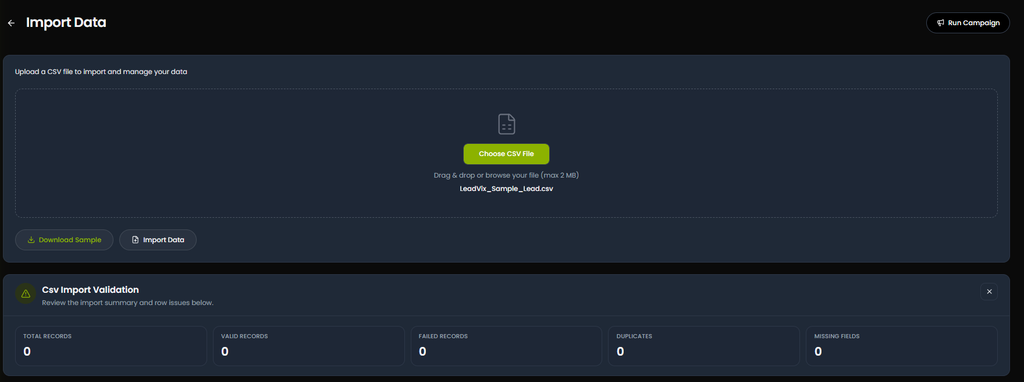
- Once your CSV file is ready, go back to the Import Data panel in LeadVix
- Click Select File or drag and drop your Excel file into the upload area
- Click Import Data
The system will process your file; this usually takes a few seconds depending on how many records you’re importing.
💡Tip: There’s no strict limit on how many leads you can have in a single import file, but your subscription plan determines the total number of leads your account can hold. Check your plan limits in the Subscription section before importing a very large file.
Step 5: Read Your Import Report
Once the import is complete, LeadVix generates an Import Report showing exactly what happened to every record in your file.
Here’s what each result means:
| Result | What It Means |
| Total Records | The total number of rows in your file |
| Valid Records | Records that imported successfully |
| Failed Records | Records that couldn’t be imported due to an error |
| Duplicate Records | Records skipped because the email address already exists |
| Missing Required Field | Records skipped because a required column was empty |
Example from a real import:
- Total Records: 200
- Valid Records: 102
- Failed Records: 13
- Duplicate Records: 84
- Missing Required Field: 1
In this example, 84 records were duplicates; the same email address appeared multiple times in the file. 13 failed for other reasons, and 1 was missing a required field. Only 102 records were imported cleanly.
💡Tip: Don’t be alarmed if your first import has a high number of duplicates or failures. This is very common especially if you’re importing from an older spreadsheet that hasn’t been cleaned recently. Use the report to identify the issues and fix them.
Step 6: Check Your Imported Leads
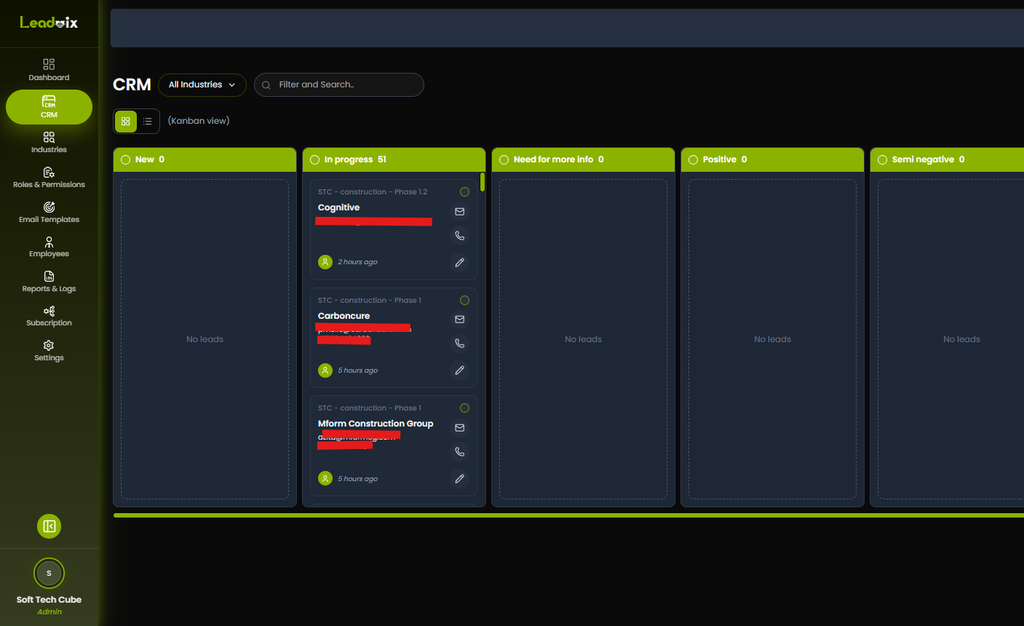
Once the import is complete, go to the CRM section and you’ll see your imported leads listed and organised.
You can:
- Search for specific leads by name or email
- Filter leads by industry or company
- View individual lead profiles
- Check for any leads that look incorrect and update them manually
💡Tip: Do a quick spot check after every import. Search for a few names or email addresses you know are in your file and confirm they appear correctly in the CRM. This takes 2 minutes and saves a lot of trouble later.
What to Do With Failed or Duplicate Records
Duplicate records: If a lead shows as a duplicate, it means that email address is already in your LeadVix account. This is fine; it just means you don’t need to import them again. If you believe a duplicate is actually a different person with the same email, that’s a data quality issue worth investigating before reaching out.
Failed records: Go back to your Excel file and look at the rows that failed. The most common reasons are:
- A required field is empty
- An email address is formatted incorrectly (missing @ symbol, spaces in the address etc.)
- A field contains characters the system can’t process
Fix the issues in your file and re-import just the corrected rows.
Missing required field: Open your file, find the row with the missing field, fill it in, and re-import.
💡Tip: Create a separate Excel file with only your failed and corrected records, then re-import just that file. This way you don’t accidentally create duplicates by re-importing records that already went through successfully.
Understanding How LeadVix Handles Duplicates
LeadVix identifies duplicates based on email address. If the same email address appears:
- More than once in your import file, all but the first instance will be marked as duplicate
- In your import file AND already in your LeadVix account, the incoming record will be skipped
This is a feature, not a bug. It prevents you from accidentally contacting the same person multiple times from different campaigns.
💡 Tip: Before importing a large file, it’s worth removing obvious duplicates from the file itself first. Most spreadsheet tools, including Excel and Google Sheets, have a built-in Remove Duplicates function. Running this before upload saves you from a messy import report.
Common Issues & How to Fix Them
Import fails completely
Check that your file is saved in .csv format. Open your Excel file and save it as CSV before uploading if you haven’t already. Also make sure you’re using the Sample file as your base and haven’t accidentally deleted or renamed any column headers.
High number of failed records
Open your file and look at the failed rows carefully. The most common causes are incorrectly formatted email addresses, empty required fields, or special characters in text fields. Clean the data and re-import.
High number of duplicates
This usually means your data has a lot of repeat entries. Run a Remove Duplicates function on your Excel file before importing, or check if you’ve already imported some of these leads previously.
Leads not appearing in CRM after import
Refresh your browser and check the CRM again. If they still don’t appear, check the import report to confirm the records actually imported as Valid. If the report shows 0 valid records, the import didn’t go through. Check your file format and try again.
Industries not showing up correctly
Make sure the industry or company category column in your file uses consistent, clean values. Inconsistent spelling or formatting in that column can affect how leads are grouped and filtered later when running campaigns.
Frequently Asked Questions (FAQs)
What file format do I need to import leads?
LeadVix provides a Sample file in Excel format to make data entry easier. Before uploading, save your completed file as CSV (.csv) that is the only format LeadVix accepts for import.
How many leads can I import at once?
There’s no strict limit on file size but your subscription plan determines the total number of leads your account can hold. Check your plan limits in the Subscription section before importing a very large file.
What counts as a duplicate lead?
Any record where the email address already exists in your LeadVix account either from a previous import or added manually. Duplicate records are automatically skipped during import.
Can I import leads more than once?
Yes. You can import new batches of leads at any time. Just make sure your new file doesn’t contain email addresses already in the system that will show as duplicates and be skipped.
What happens to failed records?
They don’t import. Fix the issue in your Excel file, usually a missing required field or incorrectly formatted email and re-import just the corrected rows.
Can I manually add leads instead of importing?
Yes. You can add individual leads directly inside the CRM. This is useful for one-off additions but for larger lists the bulk import is much faster.
Can I edit lead details after importing?
Yes. Open any lead inside the CRM and you can edit their details directly. Changes are saved immediately.
What is the industry column used for?
LeadVix organises leads by industry and campaigns are always run by industry. Make sure this column is filled in accurately because when you go to run a campaign you’ll be selecting leads by industry first.