Building the emails your campaigns will send manually or with AI
What Is This Guide For?
Before you can run a campaign in LeadVix, you need an email template. The template is the email your leads will receive: the subject line, the body, the tone, and the message.
LeadVix gives you two ways to create a template:
- Create New Template: AI generates the email for you based on your industry and brief
- New SendGrid Template: You write the email yourself using a full rich text editor
Both options are available from the Email Templates section in the left sidebar.
How to Get There
Click Email Templates in the left sidebar.
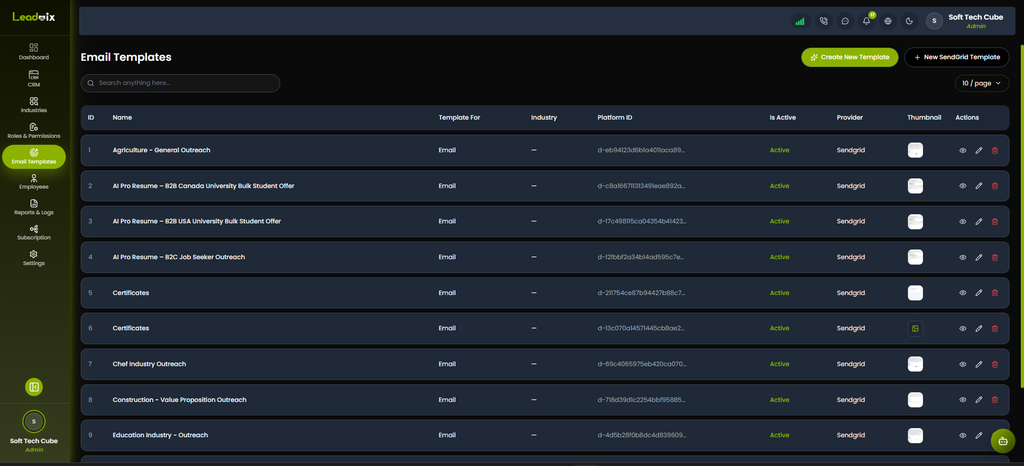
This is where all your templates live: ones you’ve created manually and ones the AI has generated. You can create as many templates as you need and use different ones for different campaigns or industries
Option 1: Create a Template Manually
This is the fastest way to get a template ready. The AI generates a complete email subject line and body based on your industry and an optional brief.
Step 1: Click Create New Template
Click the green Create New Template button at the top right of the Email Templates page.
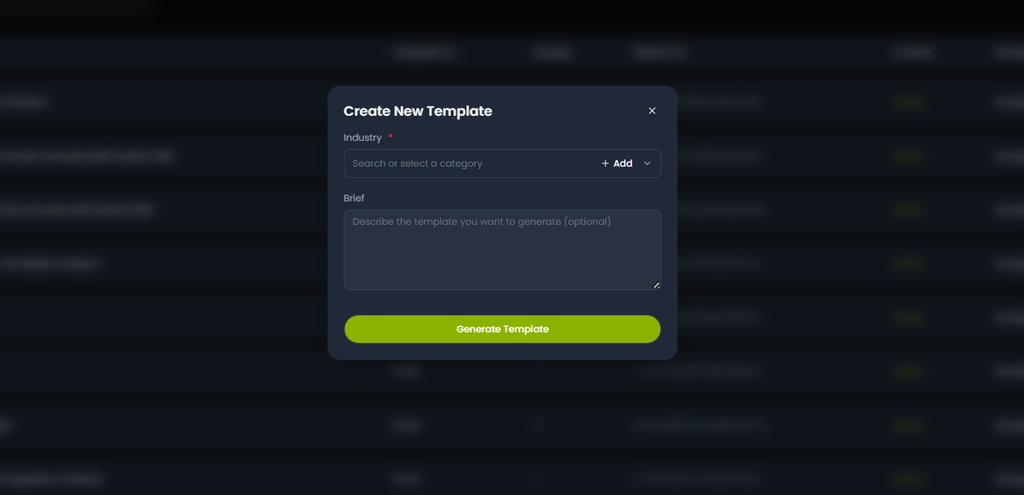
A popup appears with two fields:
| Field | Details |
| Industry | Required: search or select your industry from the dropdown. If yours isn’t listed, click “+ Add” to add a custom industry |
| Brief | Optional: describe what you want the template to achieve |
Step 2: Select Your Industry
Click the Industry dropdown and search for or select the industry your leads belong to.
If your industry isn’t in the list, click the “+ Add” button next to the search field to add it as a custom category.
💡Tip: Make sure the industry you select here matches the industry of the leads you’re planning to target. The AI uses this to make the email relevant and specific to that sector.
Step 3: Add a Brief (Optional but Recommended)
The Brief field lets you give the AI more context about what you want the email to say. The more specific you are, the better the output.
For example:
“We provide IT consulting for mid-sized businesses. This campaign targets decision-makers. We want leads to book a 15-minute discovery call.”
Even a couple of sentences make a noticeable difference to the quality of the generated template.
Step 4: Click Generate Template
Click the green Generate Template button.
The AI will take a few seconds to generate a complete email template, including a subject line, based on your industry and brief.
Step 5: Review and Edit
Once generated, review the template carefully line by line. Check:
- Does the subject line make sense for your audience?
- Does the tone match your company?
- Are the variables placed correctly?
- Is the call to action clear?
Edit anything that needs adjusting before saving.
⚠️ Important: Always review AI-generated templates before using them in a campaign. The AI works from your Knowledge Base and industry context, but you know your leads and your brand better than any tool does.
Option 2: New SendGrid Template (Manual)
If you prefer to write your own email from scratch, use the SendGrid Template editor. This gives you full control over every word, format, and element of your email.
Step 1: Click + New SendGrid Template
Click the “+ New SendGrid Template” button at the top right of the Email Templates page.
This opens the full template editor.
Step 2: Fill In the Template Details
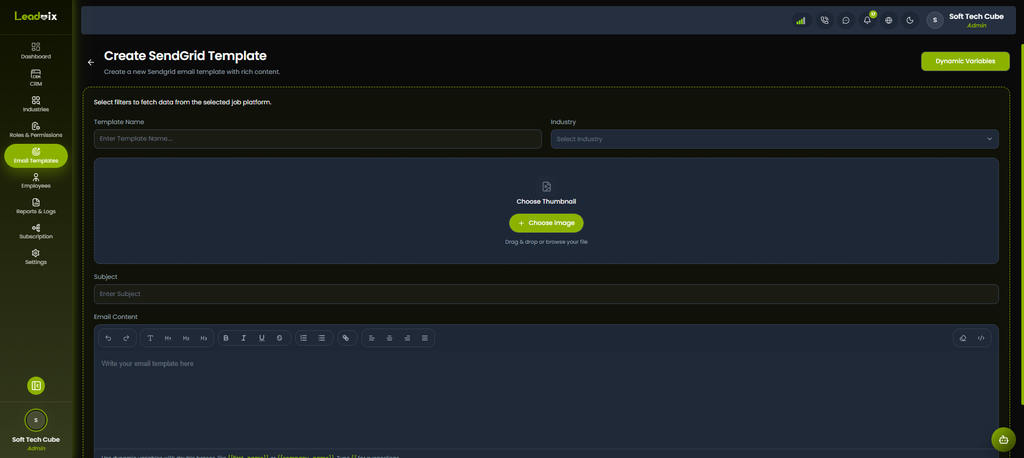
The editor has the following fields:
Template Name
Give your template a clear, descriptive name so you can find it easily later. For example: “IT Services — First Outreach” or “Construction — Follow Up.”
Industry
Select the industry this template is for from the dropdown.
Thumbnail
Upload an optional thumbnail image for the template. You can drag and drop or browse your files. This is a visual preview only it doesn’t appear in the email itself.
Subject
Write your email subject line. This is what leads see in their inbox before they open the email. Keep it short, specific, and relevant.
Email Content
Write your full email body using the rich text editor. The toolbar gives you:
- Text formatting — Bold, Italic, Underline, Strikethrough
- Headings — H1, H2, H3
- Lists — ordered and unordered
- Alignment — left, centre, right, justify
- Links
- HTML view (for advanced users)
Step 3: Use Dynamic Variables
Dynamic variables are placeholders that automatically get replaced with real lead data when the email sends. Every lead gets a personalised email; no manual editing required.
To use a variable, type {{ anywhere in the email body or subject line. LeadVix will show you a list of available variables to choose from.
Common variables:
| Variable | What It Inserts |
| {{first_name}} | Lead’s first name |
| {{company_name}} | Lead’s company name |
| {{sender_name}} | Your name from General Settings |
You can also click the Dynamic Variables button at the top right of the editor to see the full list of available variables.
💡Example: If your email says “Hi {{first_name}}, I came across {{company_name}} and wanted to reach out…” — a lead named Sarah at Acme Corp receives “Hi Sarah, I came across Acme Corp and wanted to reach out…”
⚠️ Note: Variables only work if the corresponding field in your lead data is filled in. If a lead’s first name is blank, that variable will be empty in their email. Always make sure your lead data is complete before running campaigns.
Step 4: Save Your Template
Once everything is filled in and reviewed, save your template.
Your template will now appear in the Email Templates list with its name, industry, Active status, and Provider (SendGrid).
Understanding the Templates List
Once you have templates saved, the list page gives you quick access to manage them:
- View (eye icon) — preview the template
- Edit (pencil icon) — make changes to the template
- Delete (red bin icon) — permanently remove the template
- Is Active — shows whether the template is currently active and available for campaigns
⚠️ Important: Edit your template BEFORE running a campaign, not during. Once a campaign is live, changes to the template may not apply to emails already queued or in progress. Always finalise your template first, then launch your campaign.
Hit a Snag? Here’s the Fix
AI template doesn’t sound like my company
Your Knowledge Base needs more detail about your tone, services, and communication style. Update it in General Settings, and regenerate; the more context the AI has, the better the output.
Variables showing as blank in sent emails
The corresponding field in your lead data is empty. Go to the CRM, find the affected leads, and fill in the missing details before running the campaign.
Template not appearing in campaign setup
Check that the template shows as Active in the Is Active column on the templates list. Inactive templates won’t appear as options when setting up a campaign.
Industry not in the dropdown
Click the “+ Add” button next to the Industry search field in the Create New Template popup to add your industry as a custom category.
Subject line getting low open rates
Try shorter subject lines, more specific ones, or ones that reference the lead’s industry or company. Test different approaches across campaigns and compare results in your reports.
Frequently Asked Questions (FAQs)
Can I edit an AI-generated template after it’s been created?
Yes and you should. Click the edit (pencil) icon next to the template in the list. The AI gives you a strong starting point but always personalise before using it in a real campaign.
What are dynamic variables and how do I use them?
Dynamic variables are placeholders like {{first_name}} and {{company_name}} that automatically get replaced with real lead data when the email is sent. Type {{ in the email body to see available options, or click the Dynamic Variables button at the top right of the manual editor.
Do I need a Brief to generate an AI template?
No, the Brief is optional. But providing one significantly improves the output. Even two sentences about your company and campaign goal makes a noticeable difference.
Can I use the same template for multiple industries?
Technically yes, but it’s not recommended. A template written specifically for IT Services will read differently to a Construction company. Industry-specific templates almost always perform better.
How do I know if my template is active?
Check the Is Active column on the Email Templates list page. It shows green “Active” for templates that are ready to use in campaigns.
Can I have more than one template active at the same time?
Yes. You can have as many active templates as you need one per industry, multiple per industry, or however many suit your workflow.
How long should my email be?
For cold outreach, shorter is almost always better. Aim for 3 to 5 short paragraphs with one clear call to action. If your email takes more than 30 seconds to read, most leads won’t finish it