Connecting SendGrid to LeadVix so every email event gets tracked automatically
What Is This Guide For?
You’ve connected SendGrid for sending and IMAP for receiving. But there’s one more connection worth setting up: the SendGrid Webhook.
The webhook is what tells LeadVix what happened to every email after it left your account. Without it, LeadVix sends emails into the unknown; you won’t know if they were delivered, opened, clicked, bounced, or marked as spam.
This guide walks you through setting it up in under 5 minutes.
What Does the Webhook Actually Track?
Once the webhook is set up, LeadVix receives real-time updates from SendGrid for every email event:
| Event | What It Means |
| Delivered | The email reached the recipient’s mail server |
| Opened | The recipient opened the email |
| Clicked | The recipient clicked a link inside the email |
| Bounced | The email couldn’t be delivered — address may be wrong or inactive |
| Dropped | SendGrid didn’t attempt delivery — usually due to a previous bounce or spam report |
| Spam Report | The recipient marked your email as spam |
All of this data feeds into your LeadVix reports and campaign analytics, giving you a real picture of how your outreach is performing.
💡Tip: Even if you don’t check reports regularly, setting up the webhook now means the data is being collected. You’ll have it when you need it.
Before You Start
You’ll need:
- Access to your LeadVix Settings to copy the Webhook URL
- Access to your SendGrid dashboard to paste the URL and enable events
Both should already be set up from Guide 2. This is a quick add-on step.
Step 1: Copy the Webhook URL From LeadVix
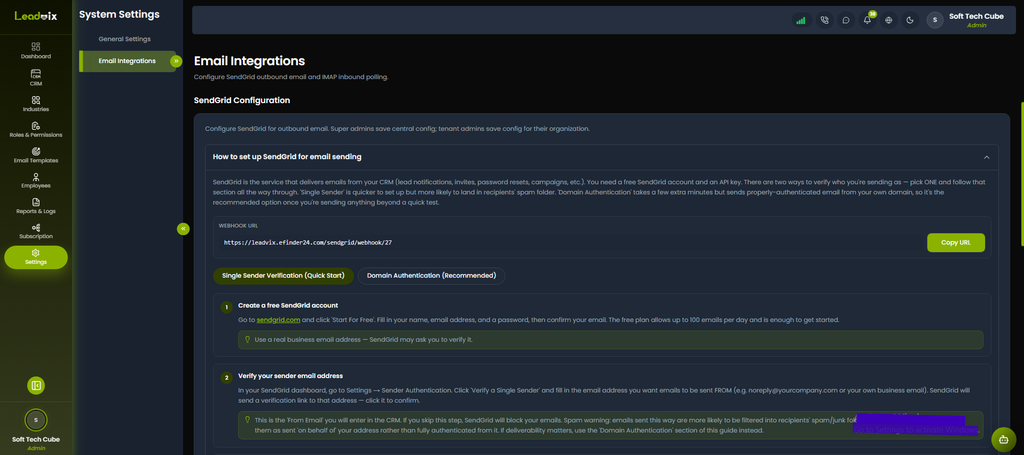
- In LeadVix, go to Settings → Email Integrations
- Then in the SendGrid tab, click on How to set up SendGrid for email sending.
- There you will see a Webhook URL field
- Click Copy URL
The URL looks like this: https://leadvix.efinder24.com/sendgrid/webhook/19
Keep this copied; you’ll paste it into SendGrid in the next step.
💡Tip: Copy it directly from the LeadVix page rather than typing it manually. Even one wrong character will break the connection.
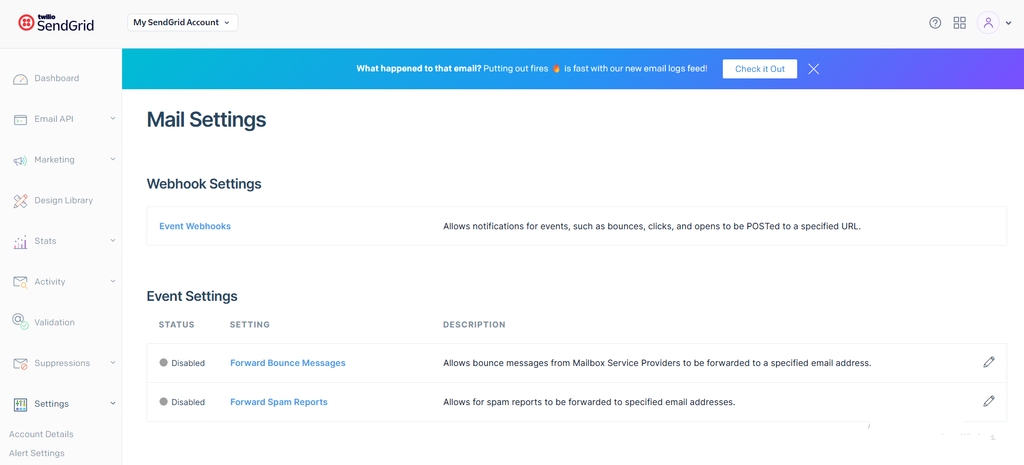
Step 2: Go to SendGrid Event Webhook Settings
Open your SendGrid dashboard in a new browser tab. Navigate to: Settings → Mail Settings → Event Webhook
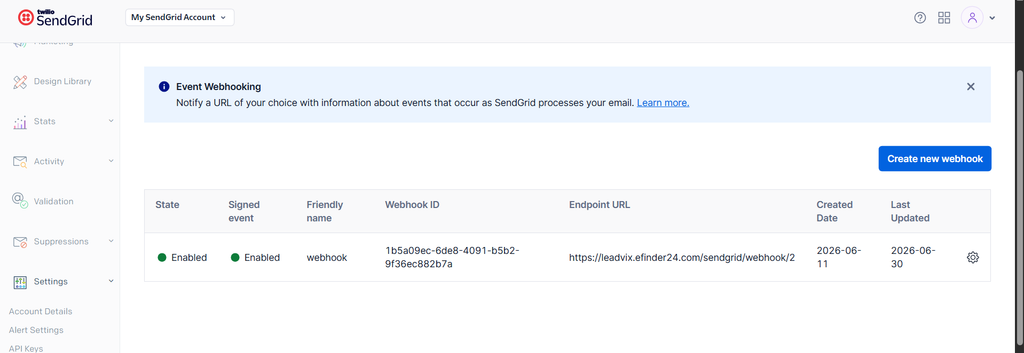
Step 3: Create a New Webhook
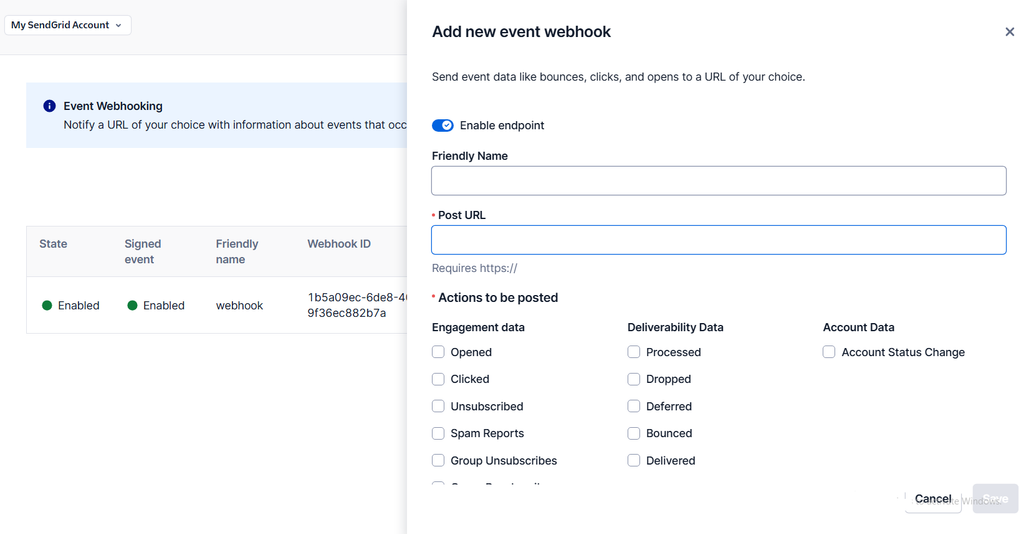
On the Event Webhook page, click Create New Webhook. A form will appear asking for:
- A name for the webhook
- The HTTP POST URL
- Which events to enable
Give it any name; something like “LeadVix Tracking” works fine.
Step 4: Paste the Webhook URL
In the HTTP POST URL field, paste the Webhook URL you copied from LeadVix:
Make sure there are no extra spaces before or after the URL.
Step 5: Enable All Events
Enable all the email events you want LeadVix to track. We recommend enabling all of them:
- ✅ Delivered
- ✅ Opened
- ✅ Clicked
- ✅ Bounced
- ✅ Dropped
- ✅ Spam Reports
Enabling all events gives you the most complete picture of your campaign performance. You can always adjust later if you only want to track specific events.
Step 6: Save
Click Save to activate the webhook. That’s it. The webhook is now live. From this point forward, every email sent through LeadVix via SendGrid will report back its status automatically.
How to Verify It’s Working
After setting up the webhook and running a campaign, go to Reports & Logs in LeadVix. If the webhook is working correctly, you’ll see email event data appearing: delivered counts, open rates, click rates, and bounce information.
If you see emails sent but no delivery or open data appearing, double-check:
- The Webhook URL is pasted correctly in SendGrid
- All events are enabled
- The webhook is saved and active in SendGrid
What Each Event Tells You
Understanding what the webhook data means helps you make better decisions about your campaigns:
High delivered, low opened
Your emails are reaching inboxes but not getting opened. The problem is likely your subject line; try shorter, more specific, or more personalised subject lines.
High opened, low clicked
Leads are opening your emails but not taking action. The problem is likely your email body or call to action; make it clearer and more compelling.
High bounced
A large number of email addresses in your list are invalid or inactive. Clean your lead data; remove or update bounced addresses before running further campaigns.
High spam reports
Leads are marking your emails as spam. This is a serious signal; it damages your sender reputation and can affect deliverability for all future campaigns. Review your targeting, your messaging, and make sure you’re only contacting leads who are genuinely relevant.
Dropped emails
SendGrid dropped these before even attempting delivery, usually because the address previously bounced or was marked as spam. Clean these from your list.
⚠️Important: A high spam rate can get your SendGrid account suspended. Always make sure your lead data is legitimate, and your outreach is relevant to the people you’re contacting.
The Difference Between Delivered and Opened
A common point of confusion worth clarifying:
Delivered means the email reached the recipient’s mail server; it doesn’t mean they saw it or read it. It could still be sitting in their spam folder.
Opened means the recipient’s email client loaded the email, which triggers a tiny invisible tracking pixel. This is how open tracking works. It’s not 100% accurate because some email clients block tracking pixels by default, but it gives a reliable enough indication of engagement.
Common Issues & How to Fix Them
No event data appearing in LeadVix after campaigns
The webhook URL may not be saved correctly in SendGrid. Go back to SendGrid → Mail Settings → Event Webhook and confirm the URL matches exactly what LeadVix shows. Also make sure the webhook is enabled and saved.
Webhook URL not copying from LeadVix
Try manually selecting and copying the URL text from the field if the Copy button isn’t working. Make sure you’re copying the complete URL with no missing characters.
Bounce rate is very high
Your lead data has a lot of invalid email addresses. Before running more campaigns, clean your lead list remove obvious errors, old addresses, and any addresses that bounced in previous campaigns.
Spam reports are coming in
Review who you’re targeting and how your emails are written. Make sure your outreach is relevant and personalised. Consider switching from Single Sender to Domain Authentication in SendGrid if you haven’t already properly authenticated emails; they are less likely to be flagged as spam.
Open rate shows zero even though emails were delivered
Some email clients, particularly corporate ones, block tracking pixels by default, which means opens don’t get reported even when leads do read the email. This is a known limitation of email open tracking generally and not specific to LeadVix.
Frequently Asked Questions (FAQs)
Is the webhook required for LeadVix to work?
No, LeadVix can send and receive emails without the webhook. But without it, you won’t see any delivery, open, click, bounce, or spam data in your reports. For meaningful campaign analytics, the webhook is essential.
Do I need to set up a new webhook for every campaign?
No. One webhook covers all campaigns. Once it’s set up, it tracks every email sent through your LeadVix account automatically regardless of which campaign it belongs to.
What happens if I change my SendGrid account?
If you connect a new SendGrid account to LeadVix, you’ll need to set up the webhook again in the new account. The Webhook URL from LeadVix stays the same; just paste it into the new SendGrid account’s Event Webhook settings.
Why are some emails showing as delivered but the lead hasn’t replied?
Delivered means the email reached their mail server, not that they read it or noticed it. The lead may have seen it and not responded yet; it may have gone to their spam folder despite being delivered, or they may simply not be interested. A delivered email that gets no reply is a signal to follow up or review your messaging.
Can I track which specific links were clicked inside my emails?
Yes, the Clicked event tracks link clicks. For more detailed link-level tracking, check SendGrid’s click tracking settings to ensure link tracking is enabled in your account.
What should I do if my spam report rate is rising?
Stop the affected campaigns immediately and review your lead data and email content. Make sure you’re only contacting legitimate leads who are relevant to your offer. Consider refreshing your email templates and Knowledge Base before resuming outreach.
Is SendGrid’s webhook free to use?
Webhook functionality is included in SendGrid’s free plan. However, SendGrid’s specific features and plan inclusions may change; check SendGrid’s website directly for the most current information. LeadVix has no control over SendGrid’s pricing or plan structure.