Sending 1,000 emails can feel like a full-time job. You draft each message, find the right contacts, paste everything in, hit send, then watch what comes back. And if you have to follow up, that adds even more time.
That is why people use email automation.
With automation, you set up the list and the message once. After that, the tool can manage the sends, the later follow-ups, and basic reporting.
Still, there is a key point. Sending 1,000 emails is not automatically the same thing as sending them in a safe way.
If you push a large number out from one inbox at the same time, problems can follow. You might hit sending limits. You can also see more bounces. And spam filters may get triggered.
Gmail, for instance, suggests ramping up your sending volume step by step. It also says to watch spam signals and delivery trouble.
So what is the right way to handle it?
Can You Send 1,000 Emails With Email Automation?
Yes. You can start with email automation tools. They let you keep your contacts in order, plan when messages go out, adjust emails for each person, and see what happens after sending. What you set up will change based on the type of emails you are sending.
For example:
- Marketing emails: Use a bulk email automation platform designed for subscribers and campaigns.
- Cold outreach: Use an outreach platform that supports multiple sending accounts and controlled sending.
- Sales emails: Use a CRM with automated campaigns and follow-ups.
It’s not about sending 1,000 emails in a short period of time.
It’s to streamline the process without losing control of content, quality of your list and volume of your sending.
Step 1: Start With a Clean Email List
Clean your list prior to automating. If you have a dirty database, it’s easy to cause trouble by sending 1,000 emails to it.
Remove:
- Invalid email addresses
- Duplicate contacts
- Old or inactive addresses
- People who have unsubscribed
- Contacts who shouldn’t receive the campaign
If you’re working on a larger campaign, opt for an email verification service to weed out addresses that are likely to bounce.
Repeated bounces will affect your sender’s reputation, and this is important.
Also, it never means that if you have someone’s email automation, you may send them promotional emails. There are differences in commercial emails between countries, and Gmail suggests sending to those who have opted in or otherwise expect your messages.
Step 2: Organize Your Contacts
Create a spreadsheet or enter your 1,000 contacts into your email automation system. Useful fields include:
- First name
- Last name
- Company
- Job title
- Email address
- Industry
- Lead status
- Personalization details
This gives your automation something to work with.
Instead of:
“Hi there, I wanted to introduce our company…”
You can create something more relevant:
“Hi Sarah, I noticed your team recently expanded into…”
Any little details can help an automated e-mail feel less automated.
Step 3: Set Up Your Sending Domain
This is one of the easiest that is easily missed. Authenticate your sending domain before you start sending en masse.
Implement at least SPF and DKIM. Also, Gmail suggests implementing DMARC, especially for those who send a lot of emails. By using the proper authentication method, receiving providers can ensure that the email automation came from an authorized sender.
Don’t overlook this step because your email automation software will claim to be able to send emails for you.
Should You Use Multiple Inboxes?
In the case of cold outreach, businesses tend to distribute the sending over several legitimate, well-configured mailboxes instead of sending from a single mailbox.
Don’t use multiple inboxes to circumvent provider limits or a spam filter, though.
Instead, it’s a good idea to slowly ramp up the volume of the emails you send and keep your engagement and list quality high.
Step 4: Warm Up New Sending Accounts
Don’t start by sending a huge batch of emails to brand-new mailboxes.
Begin with a small number, then add more over time.
How long to “warm up” varies by the email automation provider, the account’s past use, who you are emailing, and how often you send. There is no single timer that fits everyone, like 14, 30, or 60 days.
What matters is avoiding sudden volume spikes.
Gmail specifically recommends increasing sending volume slowly and avoiding bursts, especially when you don’t have an established sending history.
Step 5: Write One Good Email Template
Automation is not the same as blasting the same flat note 1,000 times. Start with a simple email automation layout. Then change the details that actually matter.
For Example:
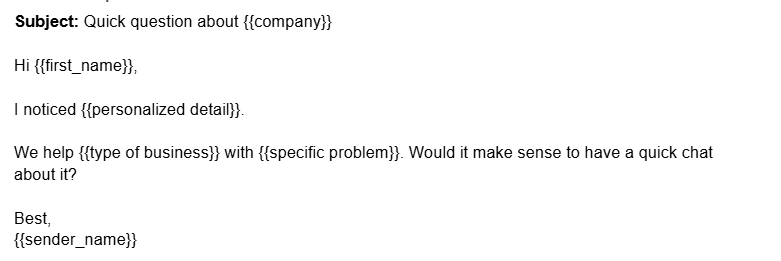
Be succinct in your message. Generally don’t put images, lots of HTML or unnecessary links in your email automation, particularly if you are doing cold outreach. The e-mail should resemble one that is sent from a real individual.
Step 6: Create Your Automated Email Marketing Workflow
You can now create the campaign. A basic process might be as follows:
Import contacts → Send email → Wait → Check for reply → Follow up → Stop when the lead responds
That’s the real benefit of email marketing automation. You don’t need to remember which person needs a follow-up tomorrow. The workflow does it for you.
For Example:
Day 1: Send the first email
Day 3: Send a follow-up if there’s no reply
Day 7: Send a final follow-up
After a reply: Stop the sequence
The specific day and time should not be copied from others, but should be decided according to the target audience and campaign.
Step 7: Don’t Send All 1,000 at Once
This is likely to be the most detrimental error to avoid. If you have 1000 emails to send, don’t necessarily send all 1000 at once.
Rather, distribute the sending volume across a period of time, as per the sending infrastructure and provider limits. For example, you might start with a smaller daily volume and increase it as your domain and inboxes establish a consistent sending history.
Google recommends sending at a consistent rate, avoiding sudden spikes, and reducing volume if messages start bouncing or being deferred.
Therefore, don’t fixate on the secret number of emails in the Inbox.
It is more important to be consistent than maximising the amount you do each day.
Step 8: Track What Happens After Sending
Automation shouldn’t end when the email automation leaves your inbox. You need to know what happened next. Track metrics such as:
- Delivery rate
- Bounce rate
- Open rate
- Reply rate
- Click rate
- Unsubscribe rate
- Spam complaints
- Meetings or conversions
If your bounce rate suddenly increases, stop and investigate your list.
If replies are poor, your targeting or message may need work.
If people are opening emails but not responding, your offer or call to action might be the problem.
Gmail also recommends monitoring delivery, spam rates, server responses, and domain reputation as sending volume increases.
Can a CRM Help With 1,000 Emails?
Yes, if those e-mails are a part of a sales process, and not just a one-off e-newsletter.
LeadVix, for instance, offers all the tools for lead management, sending emails, auto-reply based on AI, campaigns, and analytics under one roof.
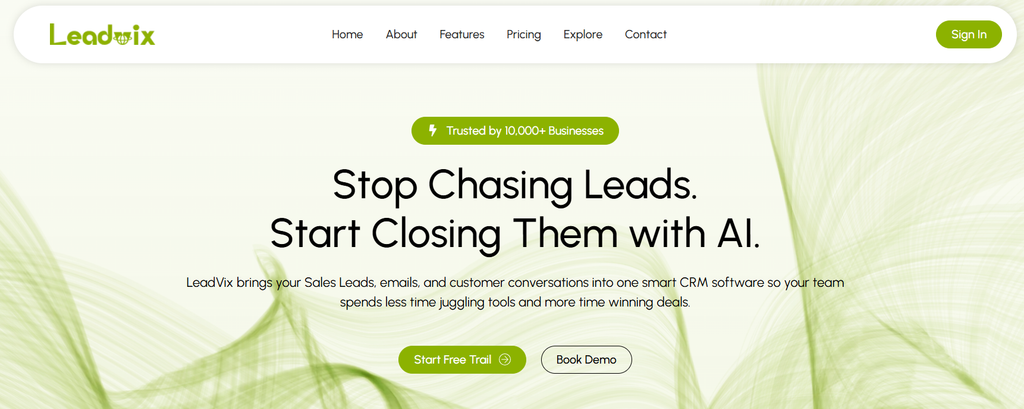
You can import leads, structure them in your pipeline, execute campaigns, and monitor leads’ reactions and activity without the need to switch between various tools.
With a sales team of hundreds or thousands of leads, that can make the entire process easier.
6 Mistakes When Sending 1,000 Emails
1. Sending everything from one inbox
This can cause deliverability problems if there is a sudden increase in volume. Proceed with building volume slowly.
2. Skipping email verification
Even with just a handful of incorrect addresses, as your list grows your number of problems will be in the hundreds.
3. Using the same generic message
Automation should save time, not remove personalization.
4. Ignoring replies
Many sales campaigns are done with the aim of getting replies. Ensure that someone or something is available to perform the action of.
5. Forgetting unsubscribes
If recipients can easily unsubscribe from marketing and promotional emails. Gmail one-click unsubscribes for relevant bulk promotional messages.
6. Looking only at open rates
An email automation being opened doesn’t mean it worked. Replies, meetings, conversions, and revenue are usually much more useful measures.
To Sum Up
You can’t press Send 1000 times to send 1000 emails. Automation is for that.
However, the intelligent way is not to send as many as can be as quickly as can be.
Begin with an empty list. Authenticate your domain. Use good content. Increase volume gradually. Automate your follow-ups. Then observe the numbers and make the necessary adjustments.
When done properly, automated email marketing can transform a time consuming outreach process into a repeatable sales process. The repetitive work is taken care of by technology. You have your eye on the real dialogues.
Frequently Asked Questions (FAQs)
How do I automate my emails?
Pick an email automation tool. Add your contact list. Build a message sequence. Set the send times. Add follow ups. Watch what happens, like who replies, who bounces, and who clicks.
How to send 1,000 emails at once?
Use a bulk mail or outreach service. Send in smaller chunks. Also spread the load across allowed sending options. Do not blast 1,000 email automation from one inbox in one go, since that can reduce deliverability.
Can AI do email automation?
Yes. AI can help draft emails with personal details. It can sort replies. It can suggest reply text. It can also help schedule follow ups and handle parts of the workflow.
How do I make an email automation?
First, choose a tool for automation. Next, add your contacts. Then, set up an email template. After that, decide when to send and what triggers follow ups. Finally, turn the campaign on.