Adding employees, setting roles, and controlling who has access to what
What Is This Guide For?
If you’re not working alone, LeadVix lets you invite team members to collaborate inside the platform. This guide shows you how to add employees, assign roles, and manage your team from one place.
How to Get There
Click Employees in the left sidebar. This is where all your team members are listed: their names, emails, roles, and statuses.
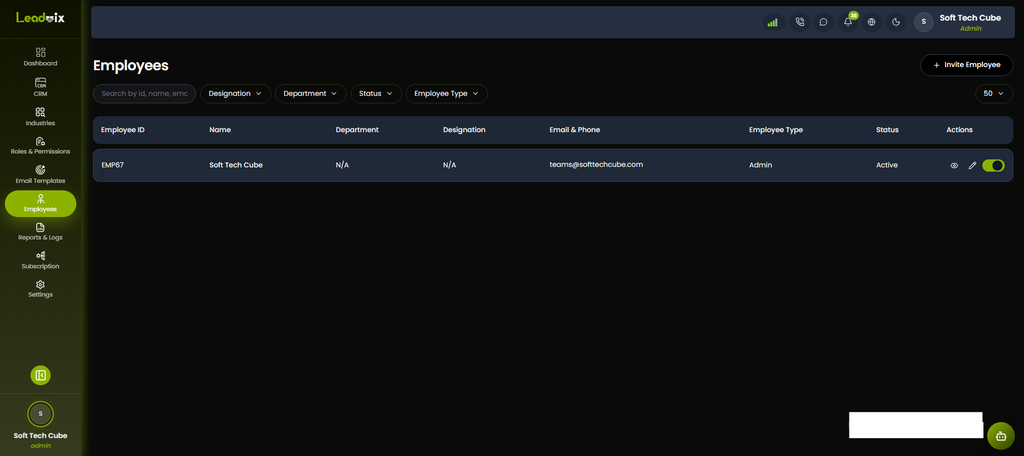
Step 1: Invite Employee
Click Invite Employee at the top right of the Employees page.
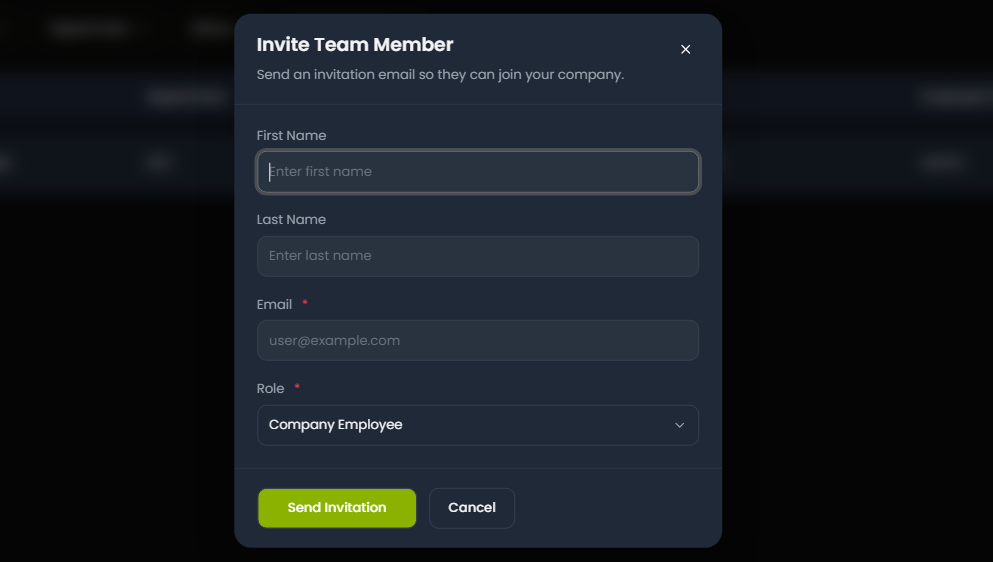
Fill in:
| Field | What to Enter |
| Name | Team member’s full name |
| Their business email address | |
| Role | Admin or Company Employee |
Click Send Invitation.
LeadVix sends an invitation email to that address. The team member clicks the link in the email to set up their account and join your workspace.
Understanding the Two Roles
Admin: Full access to everything — Settings, billing, all campaigns, all leads, team management, and reports. Assign this role only to people who need complete control.
Company Employee: Limited access — they can work on leads and campaigns but cannot access billing, system settings, or team management. Best for most team members.
💡Tip: Start everyone as Company Employee and upgrade to Admin only if they genuinely need it. Limiting access keeps your settings and billing secure.
Managing Your Team
From the Employees page, you can:
- Activate or Deactivate a team member — deactivating removes their access without deleting their account
- Edit their details — update name, email, or role at any time
- View their activity — see what they’ve been working on
💡Tip: If a team member leaves, deactivate their account immediately. This removes their access but keeps their activity history intact — so you can still see what campaigns and leads they worked on.
Roles & Permissions
For more detailed access control, click Roles & Permissions in the left sidebar.
This is where you can fine-tune what each role can and cannot do inside the platform beyond just Admin and Company Employee.
Frequently Asked Questions (FAQs)
Can I change a team member’s role after inviting them?
Yes. Open their profile in the Employees section, update their role, and save.
Can a Company Employee see all leads or only the ones assigned to them?
This depends on your Roles & Permissions settings. Contact support@leadvix.com for specific permission configurations.
Is there a limit on how many employees I can add?
Yes, your subscription plan determines how many team members you can have. Check the Subscription section for your current limit.
Can I delete a team member entirely?
Deactivation is recommended over deletion; it removes access while retaining their activity history. Contact support@leadvix.com if you need a full deletion.