Configuring your inbox so LeadVix can read and respond to lead replies
What Is This Guide For?
Once SendGrid is connected, LeadVix can send emails. But sending is only half the job. When a lead replies, you need LeadVix to actually see that reply, read it, classify it, and draft a response.
That’s what IMAP does.
IMAP is the protocol that lets LeadVix connect to your email inbox and pull in replies from leads. Without it, LeadVix sends emails into the void you’ll never see who replied, what they said, or what the AI classified their response as.
This guide walks you through setting up IMAP using Gmail step by step, in plain language.
💡Note: This guide covers Gmail setup specifically. If you’re using a different email provider, the general process is similar, but the exact steps will differ.
Before You Start, One Important Thing to Know
⚠️ Critical: The password you’ll enter into LeadVix is NOT your regular Gmail login password. It is a special Google App Password, a separate 16-digit code that Google generates specifically for third-party apps like LeadVix. Using your regular Gmail password will not work and is not secure. This guide will show you exactly how to generate your App Password.
Step 1: Check That Gmail IMAP Is Enabled
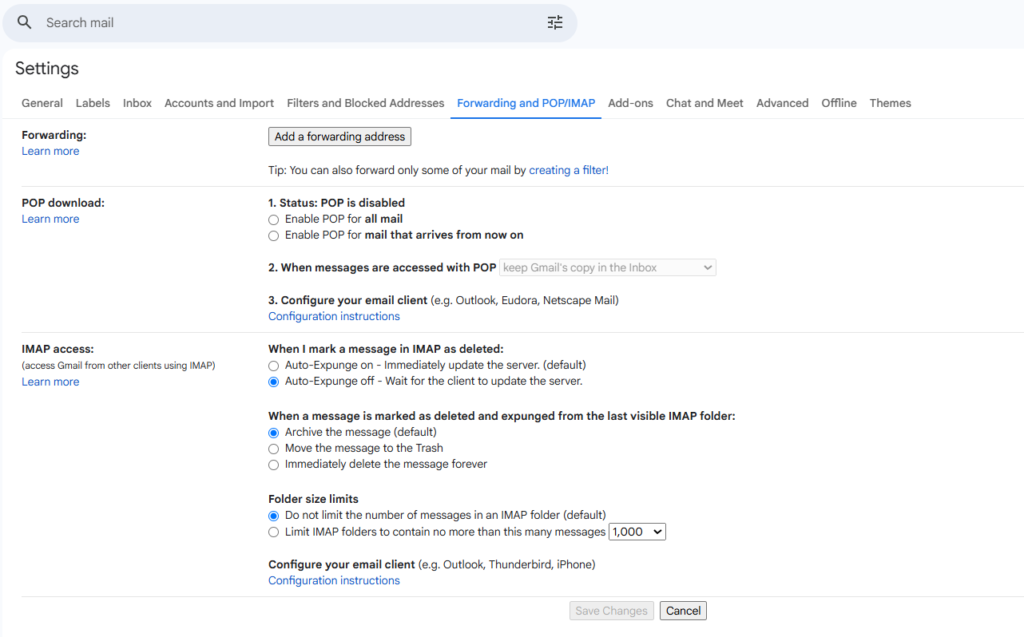
IMAP access in Gmail is usually enabled by default. Most users won’t need to change anything here. But it’s worth a quick check before moving forward.
Here’s how to check:
- Open Gmail in your browser
- Click the Gear icon in the top right corner
- Click See All Settings
- Go to the Forwarding and POP/IMAP tab
- Look for the IMAP Access section
- Make sure it says IMAP is enabled
If it’s already enabled, which it almost certainly is, move straight to Step 2. You don’t need to change anything.
If for some reason it’s disabled, click Enable IMAP and save your settings.
💡 Tip: If you’ve never manually disabled IMAP in Gmail, it’s on by default. You can skip this check entirely if you’re confident it hasn’t been changed.
Step 2: Enable 2-Step Verification on Your Google Account
Before you can generate an App Password, Google requires that 2-Step Verification is turned on for your account. This is a one-time requirement.
Here’s how to enable it:
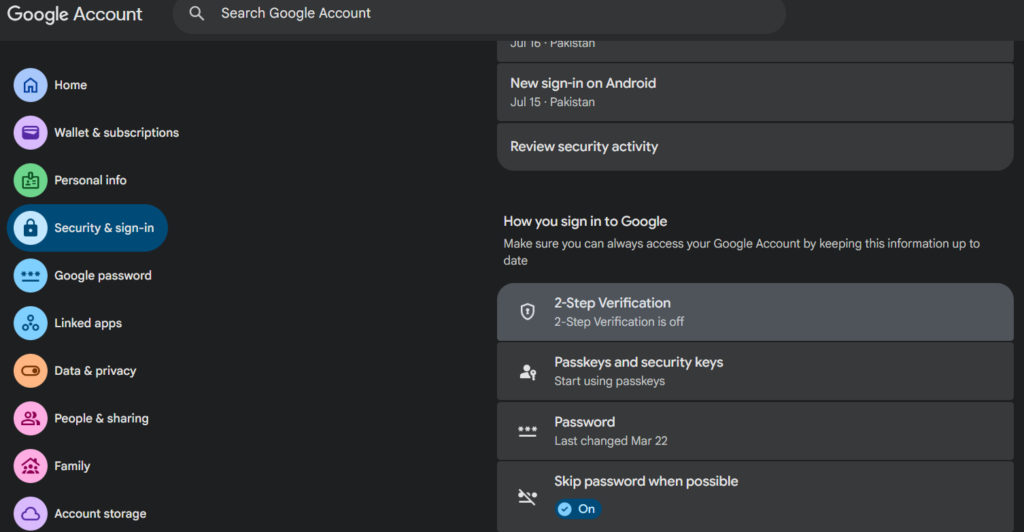
- Go to myaccount.google.com
- Click Security in the left sidebar
- Scroll down to How you sign in to Google
- Click 2-Step Verification
- Follow the on-screen steps to set it up; Google will walk you through the process
- Once complete, 2-Step Verification will show as On
If 2-Step Verification is already enabled on your account, skip straight to Step 3.
💡Tip: 2-Step Verification is worth having turned on regardless of LeadVix. It adds an important layer of security to your Google account and takes less than 5 minutes to set up.
Step 3: Generate a Google App Password
This is the most important step. The App Password is what you’ll paste into LeadVix not your regular Gmail password.
Here’s how to generate one:
- Go to myaccount.google.com
- Click Security in the left sidebar
- In the search bar at the top of the Security page, type App Passwords
- Click App Passwords from the results
- Google may ask you to confirm your account password; enter it and continue
- The App Passwords page will open
- In the app name field, type any name; something like “CRM Testing” or “LeadVix” works fine
- Click Create
- Google will generate a 16-digit App Password and display it on screen
🔴 Critical: This App Password is shown only once. Copy it immediately. Once you close or leave this page, it cannot be retrieved; you would need to generate a new one. Save it somewhere safe before moving on.
Step 4: Paste Your App Password Into LeadVix
Now go back to LeadVix. After saving your SendGrid configuration in the previous guide, the system automatically redirects you to the IMAP Configuration page. If you’re not already there, go to Settings → Email Integrations → IMAP.
Fill in the following fields:
| Field | What to Enter |
| The Gmail address you generated the App Password for | |
| Password | The 16-digit App Password from Step 3 |
| Host | Leave exactly as it is; do not change |
| Port | Leave exactly as it is; do not change |
| Poll Interval | How often LeadVix checks for new replies (in seconds) |
⚠️ Important: When pasting your App Password, Google sometimes includes spaces between the digits, for example: abcd efgh ijkl mnop. You must remove all spaces before saving. The password should be one continuous 16-character string with no gaps. A password with spaces will not work.
❗Do not change the Host or Port values. These are pre-configured by LeadVix and must stay exactly as they are. Changing them will break the IMAP connection.
Understanding Poll Interval
The Poll Interval tells LeadVix how frequently to check your inbox for new replies, measured in seconds.
The default is 60 seconds, meaning LeadVix checks for new replies every minute.
You can make this shorter or longer depending on how quickly you need to see replies:
| Poll Interval | What It Means |
| 30 seconds | Checks every 30 seconds faster response |
| 60 seconds | Default checks every minute |
| 120 seconds | Checks every 2 minutes, slower but lighter on resources |
💡Tip: For most users, 60 seconds is perfectly fine. If you’re running active campaigns and need to see replies faster, set it to 30 seconds. The presenter in the demo used 30 seconds for testing purposes.
Step 5: Save Your IMAP Configuration
Once all fields are filled in correctly, click Save IMAP.
If everything is entered correctly, the system will confirm that your IMAP configuration has been saved successfully.
At this point, both required configurations are complete:
- ✅ SendGrid: Connected and tested
- ✅ IMAP: Configured and saved
The platform will now redirect you to the main CRM, and the full LeadVix platform will open up for you to use.
What Happens After IMAP Is Set Up?
Once IMAP is configured, here’s what LeadVix does automatically:
- Every time a lead replies to one of your campaign emails, LeadVix pulls that reply into the platform
- The AI reads the reply and classifies it as Positive, Negative, Follow-Up Required, or Needs More Information
- The AI drafts a suggested response based on your Knowledge Base
- If Auto Send is off, the suggested reply waits for your approval before sending
- If Auto Send is on, the reply goes out automatically
All of this happens in the background; you just see the results inside your CRM and campaign reports.
Troubleshooting
1. IMAP configuration not saving
Double-check that you’ve removed all spaces from your App Password. A password with spaces is the most common reason IMAP setup fails. Also make sure you’ve entered the correct Gmail address; it must be the same account you generated the App Password for.
2. LeadVix isn’t pulling in replies
First, confirm that IMAP is enabled in your Gmail settings (Step 1). Then check that your App Password is still valid.
Google can revoke App Passwords if your account security settings change. If in doubt, generate a new App Password and update it in LeadVix.
3. App Password option not appearing in Google Security
This almost always means 2-Step Verification is not enabled. Go back to Step 2 and turn it on. App Passwords only appear once 2-Step Verification is active.
4. I accidentally used my regular Gmail password
That won’t work and isn’t secure. Go back to Google, generate a proper App Password following Step 3, and update the password field in LeadVix with the correct one.
5. Poll Interval is set but replies are coming in slowly
If you need faster reply detection, lower your Poll Interval to 30 seconds. Keep in mind that a very short interval (under 30 seconds) may put unnecessary load on your inbox connection.
Frequently Asked Questions (FAQs)
Why can’t I just use my regular Gmail password?
Google doesn’t allow third party apps like LeadVix to connect using your main account password especially when 2-Step Verification is enabled. The App Password is a separate, limited-access key that gives LeadVix permission to read your inbox without exposing your main account credentials.
Is it safe to give LeadVix access to my Gmail inbox?
Yes. The App Password gives LeadVix read access to your inbox for the specific purpose of pulling in lead replies. It does not give LeadVix access to your full Google account, Drive, or any other Google services.
What if I change my Gmail password later?
Your App Password is separate from your Gmail login password changing your Gmail password won’t affect your IMAP setup. However if you revoke App Passwords from your Google account, you’ll need to generate a new one and update it in LeadVix.
Can I use a different email provider instead of Gmail?
The IMAP setup in this guide is specific to Gmail. If you’re using another provider such as Outlook or a custom business email, the general process is similar but the specific steps will differ. Contact support@leadvix.com for guidance on non-Gmail setups.
What does Poll Interval actually affect?
It controls how often LeadVix checks your inbox for new replies. A shorter interval means replies show up in LeadVix faster. A longer interval means there’s a slight delay. For most users the default of 60 seconds is perfectly fine.
Do I need to redo IMAP setup if I change my Gmail account?
Yes. If you switch to a different Gmail account, you’ll need to generate a new App Password for that account and update your IMAP configuration in LeadVix accordingly.
Can I have IMAP connected to multiple email accounts?
Check with the LeadVix support team for the most up-to-date answer on this platform capabilities may evolve over time.